> For the complete documentation index, see [llms.txt](https://docs.swoop.fun/llms.txt). Markdown versions of documentation pages are available by appending `.md` to page URLs; this page is available as [Markdown](https://docs.swoop.fun/swoop-pro/using-swoop-pro.md).
# Using Swoop Pro
### Swoop Pro Home Page
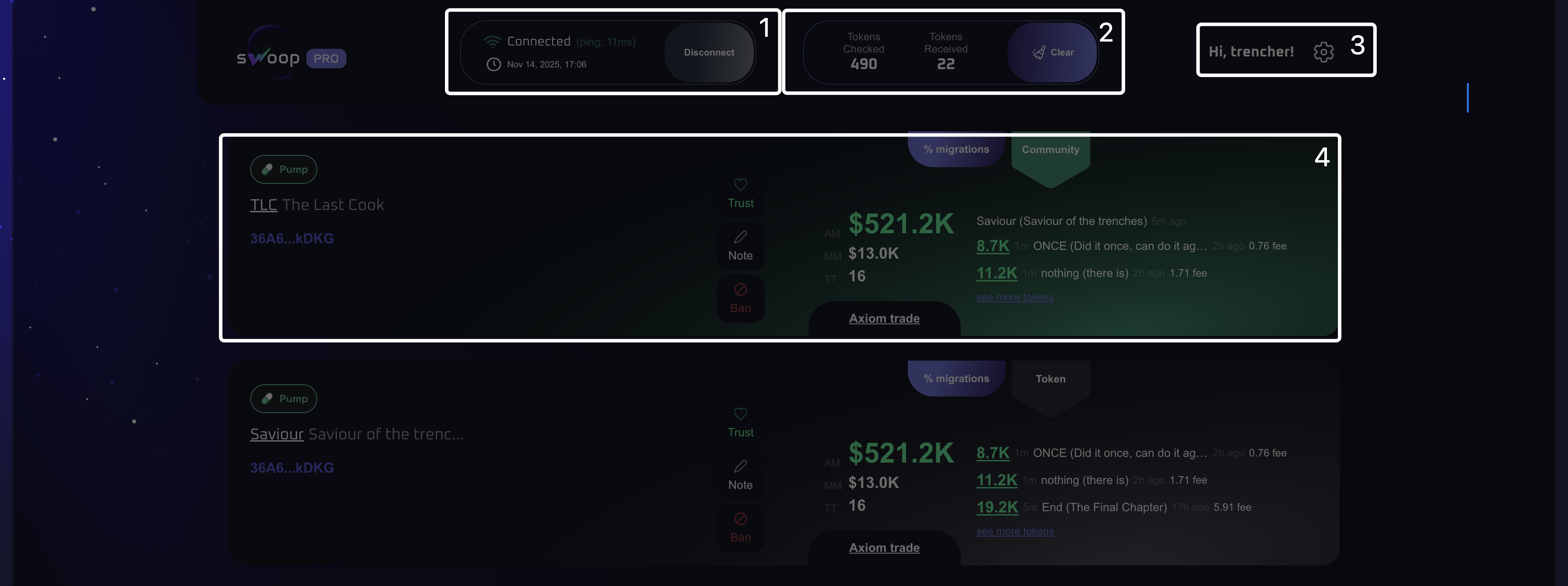
To connect Swoop Pro, click the “Connect” button. After that, the software will begin collecting tokens according to your filters.
Most of the work will take place on this page — from filtering tokens to adjusting your settings.
#### 1. Connecting the software to the market
Here you should make sure that the software is properly connected and actively collecting tokens. Also check the ping — it should be in the green zone, ideally below 30 ms. To stop the software, click the “Disconnect” button.
#### 2. Token Processing Report
Here you can see the total number of tokens scanned by the software, as well as the number of tokens collected based on your filters.
The “Clear” button removes all token cards collected by the software.
#### 3. Swoop Pro Settings
The gear icon opens the settings section.
#### 4. Token Card
The token card contains all analytics for the tokens selected by the software based on your filters. Let’s break it down section by section.
### Token Cards
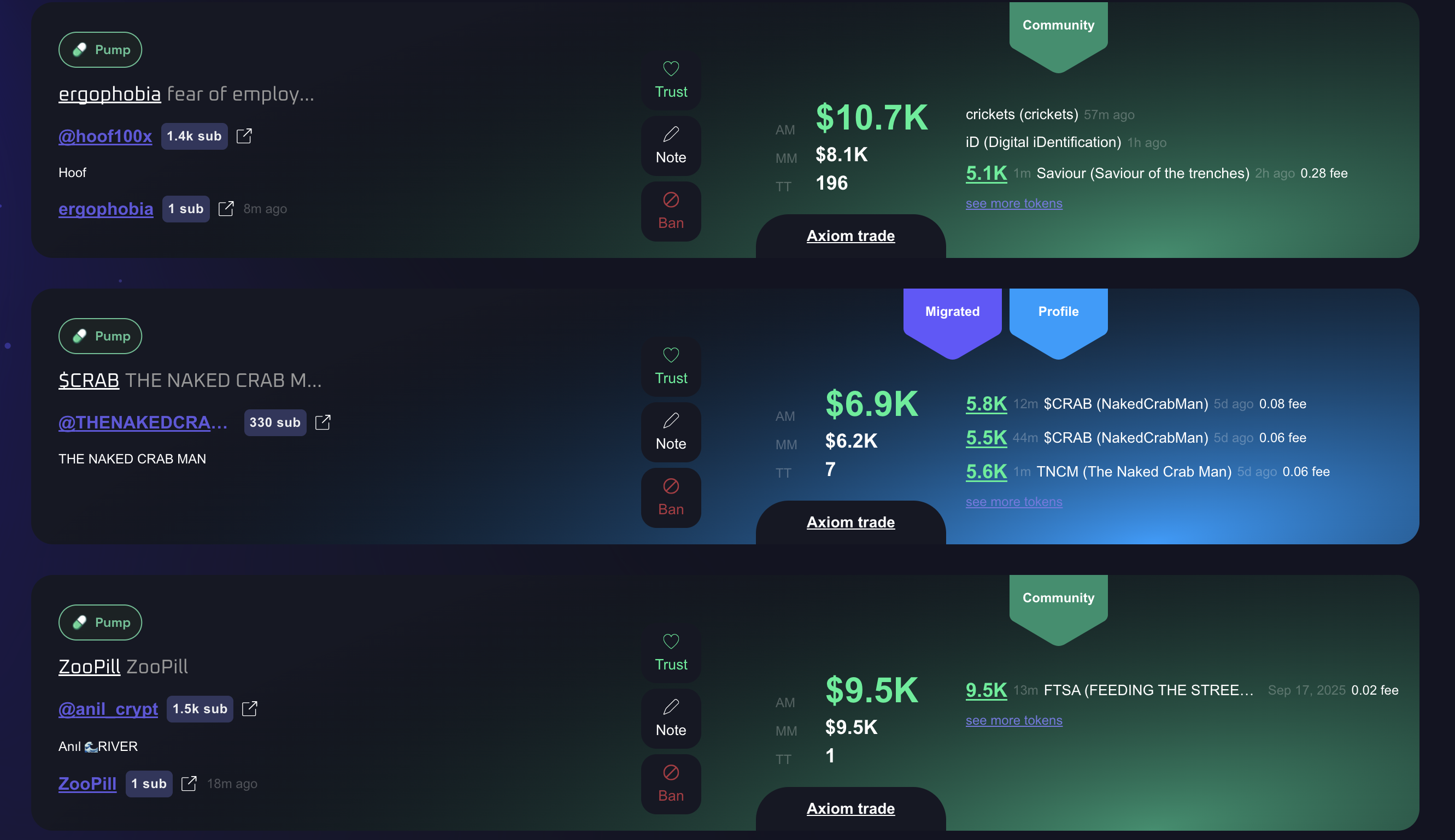
#### **Token name and developer information**
1. **Pump** — The Pump.fun platform where the token was created. This may also be Bonk, Raydium, or other platforms.
2. **ZooPill** — The token name, which is a clickable link.
3. **@anil\_crypt** — The developer’s Twitter account and their follower count.
4. **ZooPill** — The community Twitter account associated with this token.
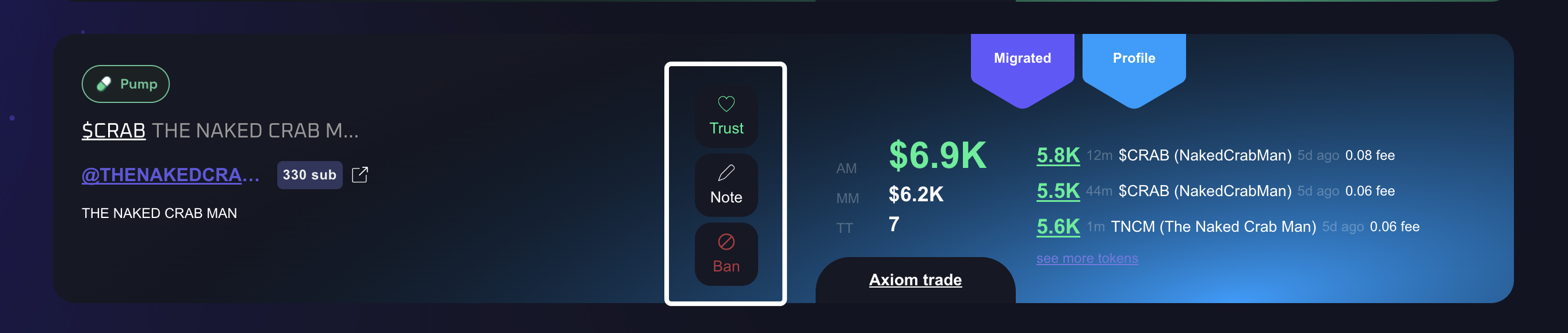
#### Developer or community whitelist, blacklist, and notes
*One of the core features of Swoop Pro. It allows you to mark trustworthy and untrustworthy developers so you can confidently trade their tokens in the future — or exclude them entirely.*
* **Trust** — Adds the developer to your **Whitelist**.\
Tokens from these developers can be traded with higher confidence.
* **Note** — A neutral note about the developer.\
Use this when you don’t fully trust them yet or don’t have enough data, but still want to track and mark the developer.
* **Ban** — Developers added to the **Blacklist** will no longer have their tokens shown to you.
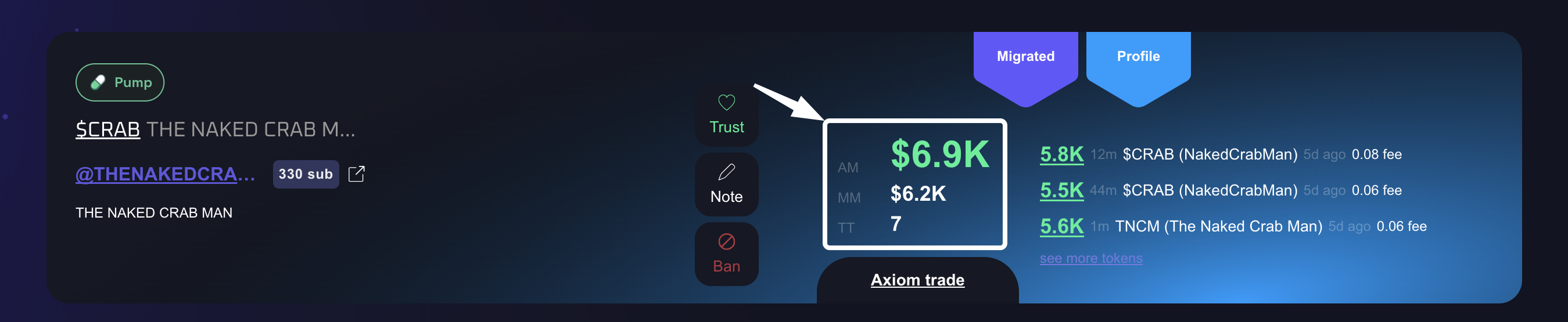
#### Developer Statistics
* **AM — Average ATH Price**\
The average peak price reached by the developer’s tokens.\
Calculated by summing the ATH prices of all tokens and dividing by the total number of those tokens.
* **MM — Median ATH Price**\
The median peak price.\
Simply put, **50%** of the tokens reached a higher value, and **50%** reached a lower one.
* **TT — Total Tokens**\
The total number of tokens created by this developer.
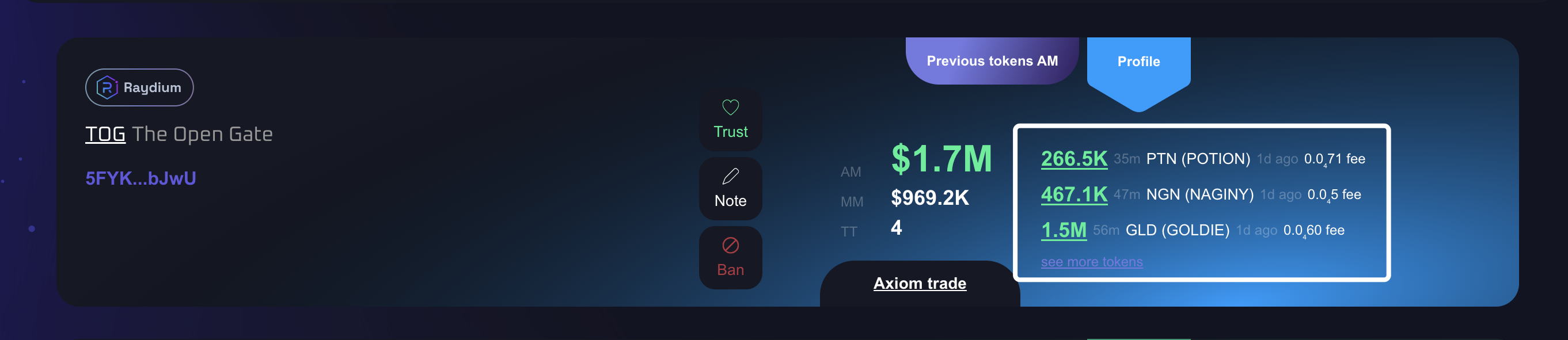
#### Recent Token Statistics
This section displays the statistics of the developer’s three most recent tokens:
* **ATH** — The token’s all-time-high price.
* **Token Name** — A clickable link to the token’s page.
* **Fee** — The total Solana network fees spent by users while trading this token.\
These fees help indicate whether the token had real trading activity or if the chart was artificially generated by the developer.
* **View More** — Opens a deeper analysis with full details on all tokens created by this developer.
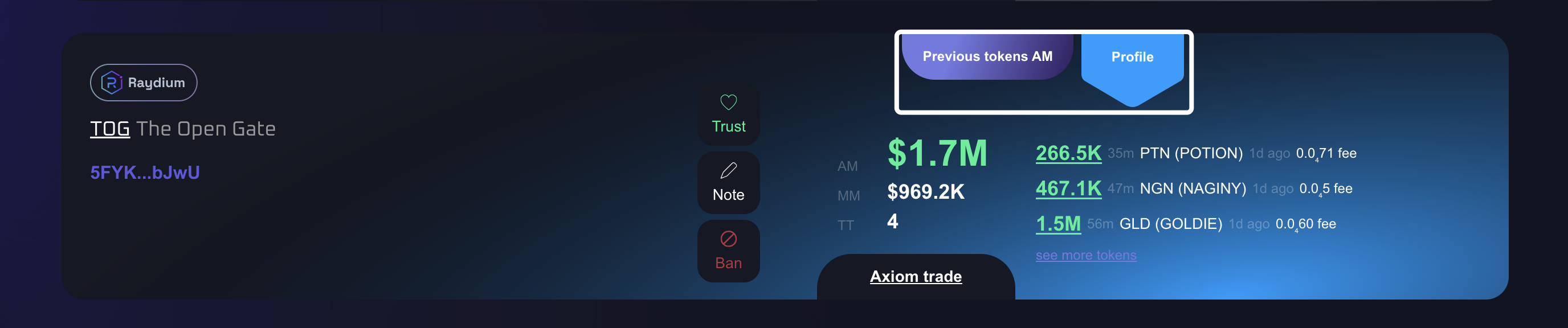
#### Tags
To help you understand **which filter triggered the appearance of a token**, we added filter tags.
* **Community** — The developer attached a community account to the token.
* **Migration %** — The token appeared based on the migration filter you configured.
* **AM of Previous Tokens** — The AM of the developer’s previous tokens is higher than the value set in your filters.
* **Profile** — Tokens that have an attached developer profile.
* **Tweet** — The developer linked a tweet to the token.
---
# Agent Instructions
This documentation is published with GitBook. GitBook is the documentation platform designed so that both humans and AI agents can read, navigate, and reason over technical content effectively. Learn more at gitbook.com.
## Querying This Documentation
If you need additional information that is not directly available in this page, you can query the documentation by asking a question.
Perform an HTTP GET request on the following URL with the `ask` and `goal` query parameters:
```
GET https://docs.swoop.fun/swoop-pro/using-swoop-pro.md?ask=&goal=
```
`ask` is the immediate question: it should be specific, self-contained, and written in natural language.
`goal` is what the user is ultimately trying to achieve, the reason they need the answer. Sharing it helps GitBook give you a better, more relevant answer. A goal is most helpful when it describes the outcome the user wants rather than restating the question. For example, with `ask=how do I create an API token`, a goal like `automate deployments from our CI pipeline` lets GitBook tailor the answer to that use case.
The response will contain a direct answer to the question and relevant excerpts and sources from the documentation.
Use this mechanism when the answer is not explicitly present in the current page, you need clarification or additional context, or you want to retrieve related documentation sections.