> For the complete documentation index, see [llms.txt](https://docs.swoop.fun/llms.txt). Markdown versions of documentation pages are available by appending `.md` to page URLs; this page is available as [Markdown](https://docs.swoop.fun/swoop-pro/swoop-pro-guide.md).
# Swoop Pro Guide
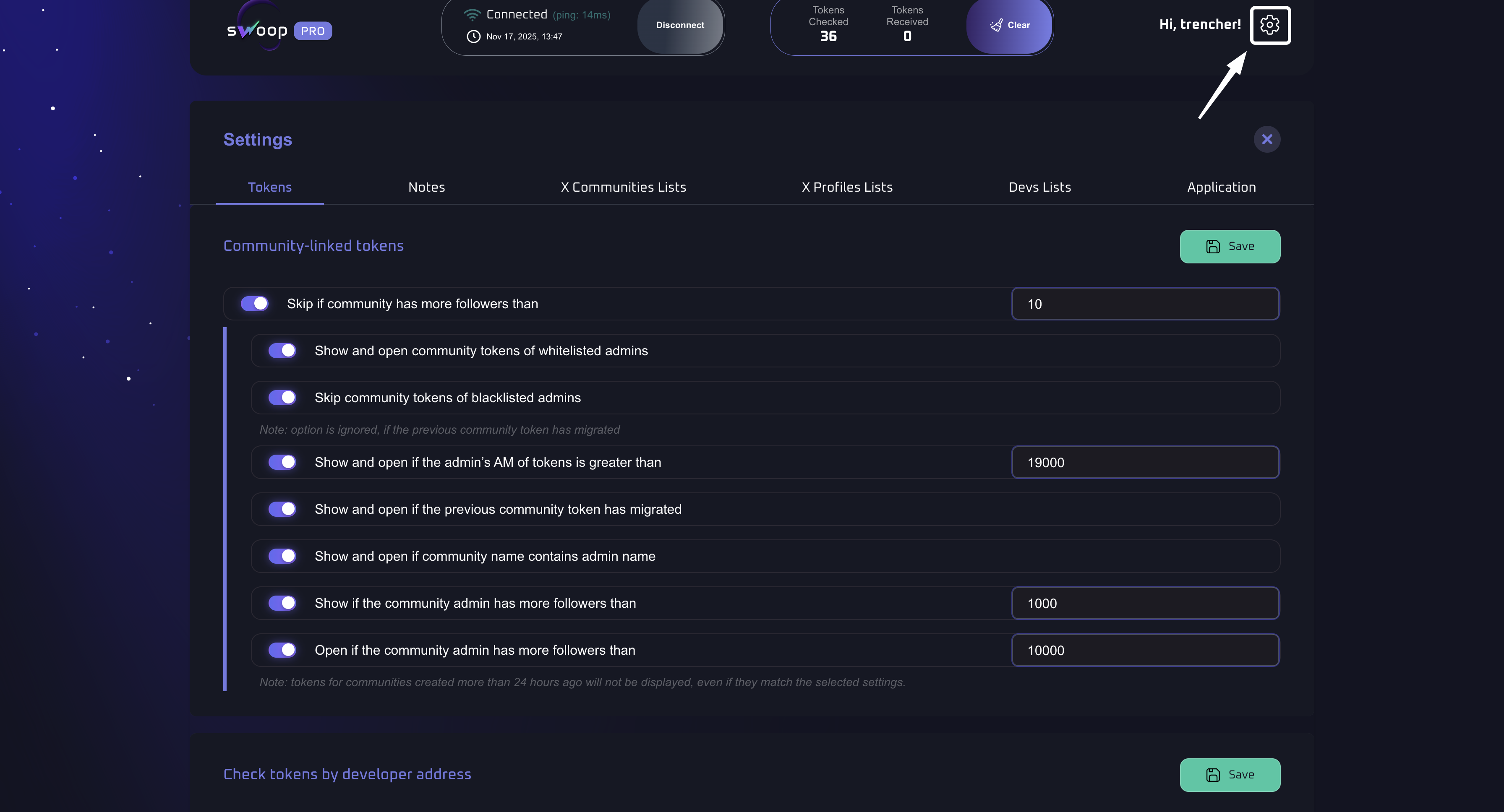
### To open the settings
Click the gear icon in the top-right corner.
## TOKENS
### Configuring filters for tokens with linked communities
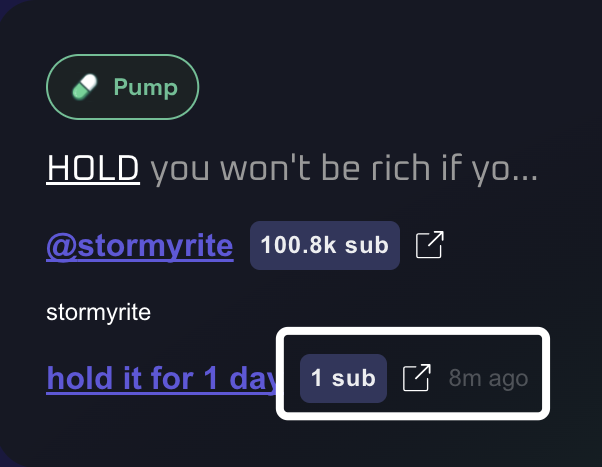
**Tokens with linked communities are displayed in green and marked with a community tag.**
At this stage, all options are enabled to maximize developer coverage. We’ll now go through each of them in detail.
* **Skip if the community has more than N followers**
As a rule, if a community has more than 10 followers, the developer is unlikely to show good results.
* **Show and open community tokens created by whitelist admins**
Tokens created by admins from your whitelist will be displayed in the software and automatically opened in a new Axiom tab.
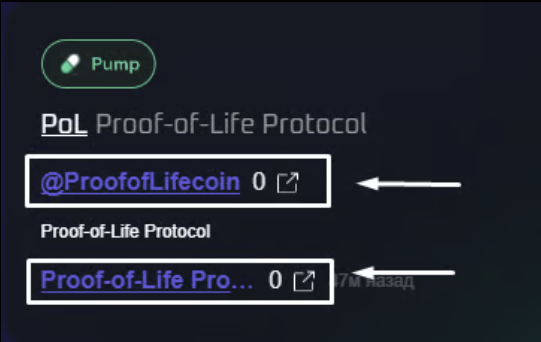
* **Skip community tokens created by blacklist admins**
**Note:** This option is ignored if the previous community token **has migrated**.\
All tokens from the blacklist will be **hidden**, except those whose **previous token migrated**. The note will appear as follows:
* **Show and open if the admin’s tokens have:**
* AM greater than
* MM greater than
* AF greater than
Shows the admin’s tokens based on the selected parameters.\
If the "Combine" option is turned off, tokens will be displayed separately for each selected condition.
For example, if the following parameters are enabled:\
— AM greater than 10,000\
— MM greater than 5,000\
— AF greater than 1 SOL
then the system will show three separate groups of tokens for each of these conditions.\
That means the results will also include tokens where MM is greater than 5,000 even if AF is less than 1 SOL.
**Combine**\
If the Combine option is enabled, all selected parameters are combined into a single filter.\
In this case, only tokens that meet all specified conditions at the same time will be shown.
For example, if the following parameters are set:\
— AM greater than 10,000\
— MM greater than 5,000\
— AF greater than 1 SOL
then the results will include only the tokens that satisfy all three conditions simultaneously.
**You can choose how the filtering is applied:**\
— across all tokens\
— only across the last 3 tokens\
— or using both options at once
This gives you more flexibility in how the results are displayed, depending on which data you want to see.
* **Show and open if the admin’s AM value is greater than N**
A corresponding tag will appear, and the **Last Tokens** section will display tokens that exceed this value.\
For example, if you set the value to **19,000**, the filter will trigger only when the developer’s AM is **above 19,000**.
* **Show and open if the previous community token has migrated**
The developer’s previous token migrated and reached a very high level — exceeding **80,000** in market capitalization.
NO SCREENSHOT AVAILABLE YET
* **Show and open if the community name contains the admin’s name**
As a rule, tokens linked to a community where the **community name matches the admin’s name** tend to show higher potential growth, since the X profile is usually styled and positioned as a project-driven token.
* **Show if the admin’s community has more than N followers**
The token will be displayed in the software, but **will not** be automatically opened in a new Axiom tab.
* **Open if the admin’s community has more than N followers**
The token page will be opened automatically in a new Axiom tab to minimize reaction time.
### Проверка токенов по кошельку разработчика
**Show and open if:**
* The developer has created more than **N** tokens
* More than **N%** of their tokens have migrated
Configured individually.\
In this example, the token card was opened because the filters **“developer has more than 1 token”** and **“migration rate is above 20%”** were triggered. These values should be adjusted based on **your personal trading strategy** and the **current market phase**.
* **Show and open if the AM of the last N tokens is greater than N**
In this example, the **AM (average ATH price)** of the developer’s **last 3 tokens** is **above 15,000**.
### **Platforms**
Select the platforms from which you want to receive tokens in the software by enabling the corresponding checkboxes.
## **NOTES**
This section displays your notes on developers. In the future, these notes will be used to help you trade tokens more quickly. Notes are shown in both the token cards and the extension.
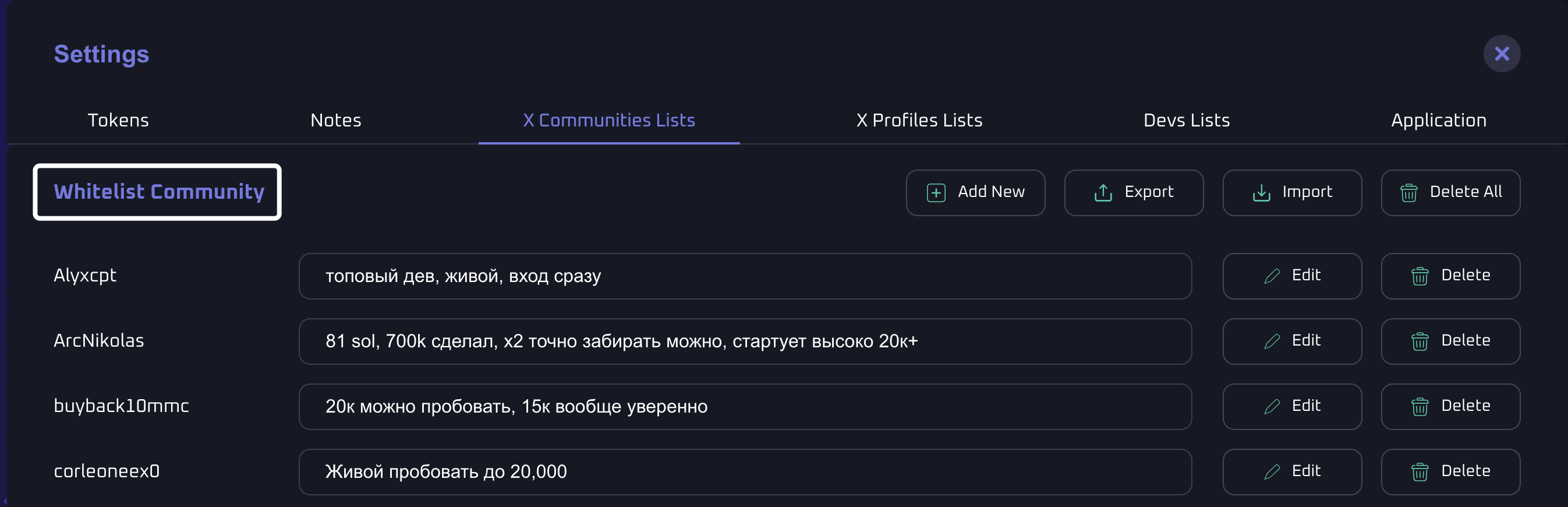
## **X Community Lists**
This section contains the Twitter/X community lists you have added to the whitelist.
**If you want to manually add a developer from a community, click Add New:**
**Paste the admin’s Twitter username into the field:**
---
# Agent Instructions
This documentation is published with GitBook. GitBook is the documentation platform designed so that both humans and AI agents can read, navigate, and reason over technical content effectively. Learn more at gitbook.com.
## Querying This Documentation
If you need additional information that is not directly available in this page, you can query the documentation dynamically by asking a question.
Perform an HTTP GET request on the current page URL with the `ask` query parameter, and the optional `goal` query parameter:
```
GET https://docs.swoop.fun/swoop-pro/swoop-pro-guide.md?ask=&goal=
```
`ask` is the immediate question: it should be specific, self-contained, and written in natural language.
`goal` is optional and describes the broader end goal you are ultimately trying to accomplish on behalf of the user. GitBook uses it to tailor the answer towards what is most useful for that goal.
The response will contain a direct answer to the question and relevant excerpts and sources from the documentation.
Use this mechanism when the answer is not explicitly present in the current page, you need clarification or additional context, or you want to retrieve related documentation sections.