> For the complete documentation index, see [llms.txt](https://docs.swoop.fun/llms.txt). Markdown versions of documentation pages are available by appending `.md` to page URLs; this page is available as [Markdown](https://docs.swoop.fun/swoop-extension/using-the-swoop-extension.md).
# Using the Swoop Extension
#### Swoop Extension
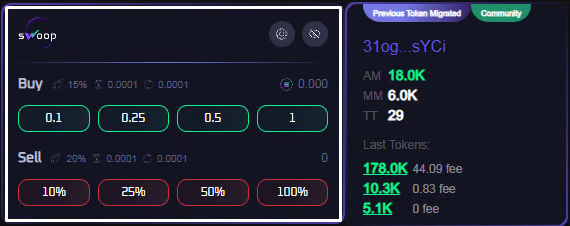
The area highlighted with a white rectangle is what we use for quick token buying and selling.
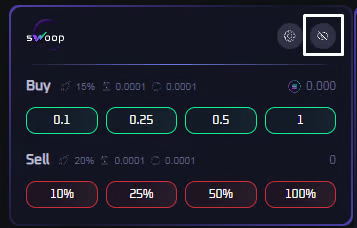
1. **To hide the extension, click the “crossed-out eye” icon.**
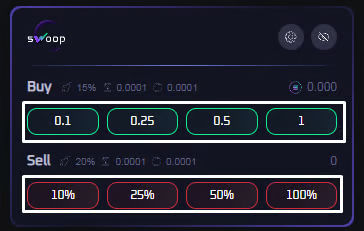
2. **Buying and Selling**
All buttons operate as **market orders**. The button values are configured in the extension settings.
**Buy:**\
When you click **0.1** or **0.5**, you will buy tokens for **0.1 SOL** or **0.5 SOL**, respectively.
**Sell:**\
Clicking **50%** will sell **half of your position**.\
Clicking **100%** will close **your entire position**.
### Swoop Pro
The developer info panel and token history are available only to users with an active **Swoop Pro** license.\
This feature allows you to quickly assess the situation as soon as Swoop Pro opens a token tab, helping you make a decision **without switching back to the main dashboard**.
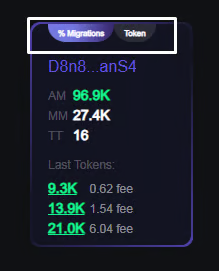
1. **Tags**
Swoop opened this token because the developer’s migration percentage meets the criteria defined in your filters.
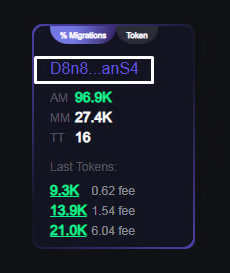
2. **Developer Contract Address**
The developer’s Twitter may also appear here if it was provided when the token was created.
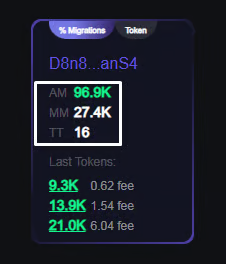
3. **Here you can see the analytics pulled from the token’s info card.**
**AM — Average ATH Price**\
The average peak price reached by the developer’s tokens.\
Calculated by summing the ATH prices of all tokens created by the developer and dividing by the total number of tokens.
**MM — Median ATH Price**\
The median peak price.\
Simply put: **50%** of the developer’s tokens reached a higher price, and **50%** reached a lower one.
**TT — Total Tokens**\
The total number of tokens created by this developer.
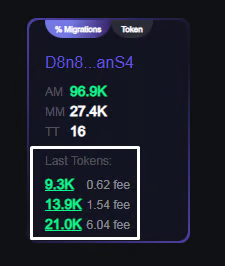
4. **The developer’s three most recently created tokens**
Shows the **ATH values** of the developer’s last three tokens.\
It also displays the **fee** — the Solana network fee — which helps determine whether the token had real activity or its chart was artificially generated.
---
# Agent Instructions
This documentation is published with GitBook. GitBook is the documentation platform designed so that both humans and AI agents can read, navigate, and reason over technical content effectively. Learn more at gitbook.com.
## Querying This Documentation
If you need additional information that is not directly available in this page, you can query the documentation dynamically by asking a question.
Perform an HTTP GET request on the current page URL with the `ask` query parameter, and the optional `goal` query parameter:
```
GET https://docs.swoop.fun/swoop-extension/using-the-swoop-extension.md?ask=&goal=
```
`ask` is the immediate question: it should be specific, self-contained, and written in natural language.
`goal` is optional and describes the broader end goal you are ultimately trying to accomplish on behalf of the user. GitBook uses it to tailor the answer towards what is most useful for that goal.
The response will contain a direct answer to the question and relevant excerpts and sources from the documentation.
Use this mechanism when the answer is not explicitly present in the current page, you need clarification or additional context, or you want to retrieve related documentation sections.